SAP is setting a new course: LSMW is history; the SAP Migration Cockpit is the future of data migration. Sounds good—but how do you actually go from theory to a working system?
In this article, we take you behind the scenes and show you step by step how to configure the SAP Migration Cockpit in the Fiori Launchpad and how to handle any issues that arise. This article focuses on the S/4HANA on-premise system.
System Requirements for the SAP Migration Cockpit
To use the SAP Migration Cockpit, your SAP system must already be running on an S/4HANA system. We explained why this migration is worthwhile and what factors are involved in the first blog post in this series. The Migration Cockpit for on-premise is available starting with Release 1610 (on-premise) and has been significantly expanded and improved over the years.
The Migration App is also available in the cloud. It can be found under the name SAP S/4HANA Migration Cockpit – Migrate Your Data. No separate licenses are required for the SAP Migration Cockpit, as the licenses are already part of the SAP S/4 system. For more information on system requirements, visit the SAP Help page.
One more note: The “Migrate Data – Migration Cockpit” app is the successor to the “Migration Cockpit” app (transaction LTMC). SAP has discontinued the “Migration Cockpit” app (transaction LTMC), so you can no longer use it to migrate data to SAP S/4HANA. However, you can still view all projects you created with this app.
Configuring the Fiori Launchpad
For all SAP Fiori apps delivered by SAP and those you have developed yourself to meet your requirements, the SAP Launchpad serves as the central interface. It is the graphical home screen for all tiles. A tile acts as the “start button” for the respective app.
In diesem Abschnitt betrachten wir die Einrichtung des SAP Fiori Launchpad nur oberflächlich, weil die vollständige Konfiguration sehr umfangreich ist und viele Blogbeiträge füllen könnte. Wir konzentrieren uns hier auf die Einstellungen, die für die SAP Migration Cockpit Apps wichtig sind.
If no settings have yet been configured for the Fiori Launchpad, you can generally set up the Launchpad via “Quick Activation” using “task lists.”
To configure the system, execute the following task lists in your system. Start the activation using transaction STC01. Be sure to note the respective prerequisites for each task list. If you need more information about service activation, you can find it here.
| No. | Task List | Description | Note |
| 1 | SAP_FIORI_FOUNDATION_S4 | Initial Setup for SAP Fiori Applications in SAP S/4HANA | Quick Activation and Setup of the SAP Fiori Launchpad |
| 2 | SAP_FIORI_CONTENT_ACTIVATION | Content Activation for SAP User Roles | Generation of SAP User Roles |
| 3 | SAP_FIORI_FCM_CONTENT_ACTIVATION | Content Activation for User Roles | Generation of customer-defined application roles and activation of Fiori apps |
| 4 | SAP_FIORI_FCM_CATALOG_ACTIVATION | Content Activation for Catalogs | Enables mass activation of Fiori apps via catalog; configuration entities can be included in Workbench orders |
| 5 | SAP_GATEWAY_BASIC_CONFIG | SAP Gateway Basic Configuration | Basic configuration steps for the SAP Gateway on the frontend server |
You can apply some settings, but not others. Depending on the scenario, you may need to perform additional tasks manually in your system. For more information on which tasks require manual handling, click here.
Roles and Authorizations
SAP provides several roles to operate the SAP Migration Cockpit. You can assign these roles depending on the task. Only the SAP_BR_CONFIG_EXPERT_DATA_MIG role is required to view the apps in your Launchpad. The other roles are optional.
| Role | Description / When is it needed? |
| SAP_BR_CONFIG_EXPERT_DATA_MIG | Required: Frontend role – without this role, the migration apps are not visible in the Launchpad |
| SAP_DMIS_MC_DT_REMOTE | Optional: Required for cross-system data migration via RFC |
| SAP_CA_DMC_MC_DEVELOPER | Optional: Für die Entwicklung eigener Migrationsobjekte (Transaktion LTMON) |
| S_DEVLOP | Optional: Development authorization – required when developing custom source rules |
| SAP_CA_BC_MIG_ANA | Optional: Tools for data migration/preparation and analysis of data sets in the migration context |
For more information on roles and authorizations, see the SAP Help page.
Required SAP Migration Services
If your system is already fully configured, after granting the authorization via the SAP_BR_CONFIG_EXPERT_DATA_MIG role under SAP S/4HANA 2025 FPS1 (current version at the time of writing this blog post), you should see the following apps in the “Data Migration” catalog section of the Launchpad.
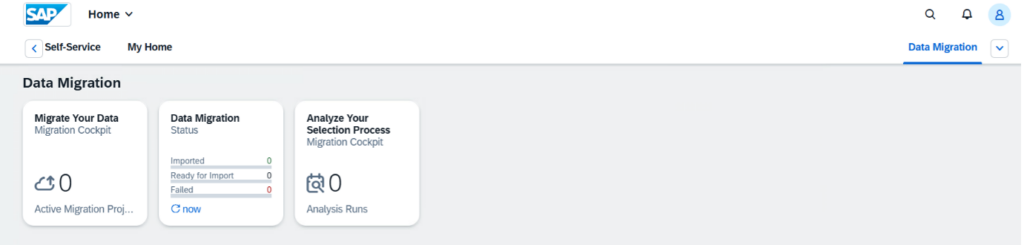
Note: In this section, we focus on migrating Cockpit apps. Some of these apps also use other services (such as Search), which you must also configure. For more details on “Optional Configuration,” see the SAP Help page.
“Migrate your Data” App
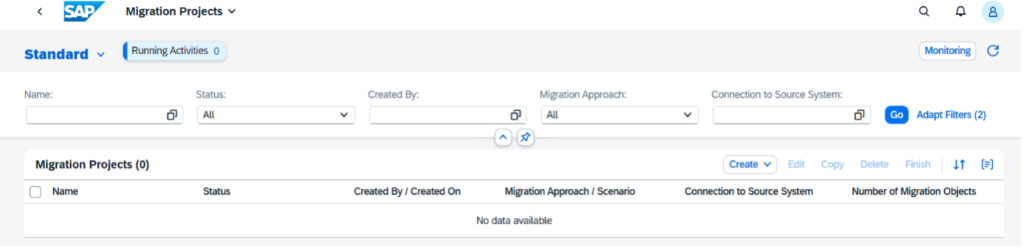
The SAP Fiori Apps Reference Library provides you with all relevant information about the app. This includes documentation, important notes, and instructions for installation and configuration. You will also find information on extension options and important support notes.
We will go into more detail later regarding the information required for configuration. The procedure is similar for all three migration apps. Therefore, we will demonstrate the steps using the “Analyze Your Selection Process” app as an example. You can then apply these steps to the other migration apps to a large extent.
This information includes the relevant services, roles, catalogs, mappings, and other details. To access this information, navigate to the “Implementation Information” and “Configuration” tabs.
- SAPUI5 Application: Ensure that the service listed here is available or activated in transaction SICF.
- OData Service: Activate this service (as well as the dependent services listed here) using transaction /IWFND/MAINT_SERVICE, provided it is an OData Service V2. For OData Service V4, transaction /IWFND/V4_ADMIN is available.
- Business Role: Assign this role to the migration user so that the associated apps are displayed in the Launchpad.
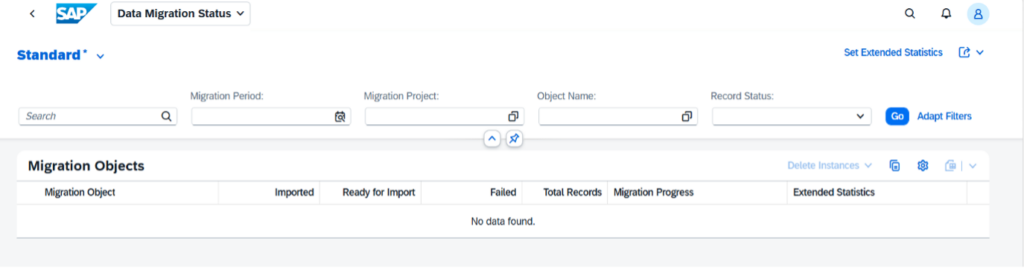
“Data Migration Status”
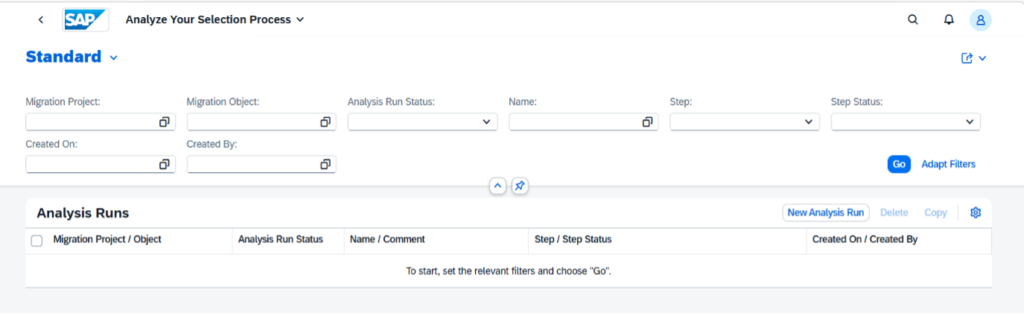
“Analyze Your Selection Process”
Service Activations
If one or all services are not activated, identify the relevant service in the SAP Fiori Apps Reference Library and then activate it.
You will need the following transactions for the steps below. Ensure that you have the appropriate authorizations:
- /IWFND/MAINT_SERVICE – Activate and manage services
- /IWFND/ERROR_LOG – SAP Gateway error log
- /IWFND/V4_ADMIN – SAP Gateway Service Administration
As an example, we demonstrate service activation for the “Analyze Your Selection Process” app.
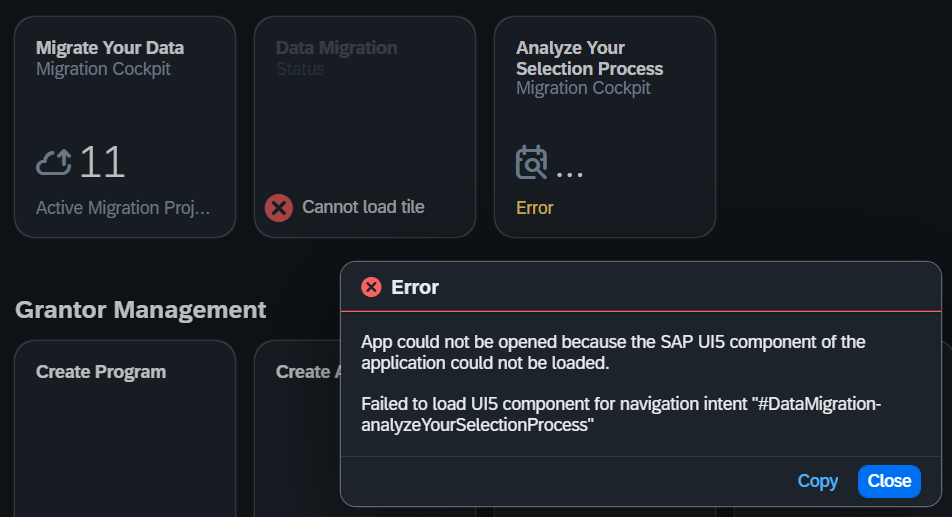
Note: When you launch the app, the message “App cannot be opened” appears because the SAP-UI5 component of the application cannot be loaded.
If you check the transaction “/IWFND/ERROR_LOG (SAP Gateway error log)” in the backend, you will see two error entries. You must resolve these for the app mentioned above to work.

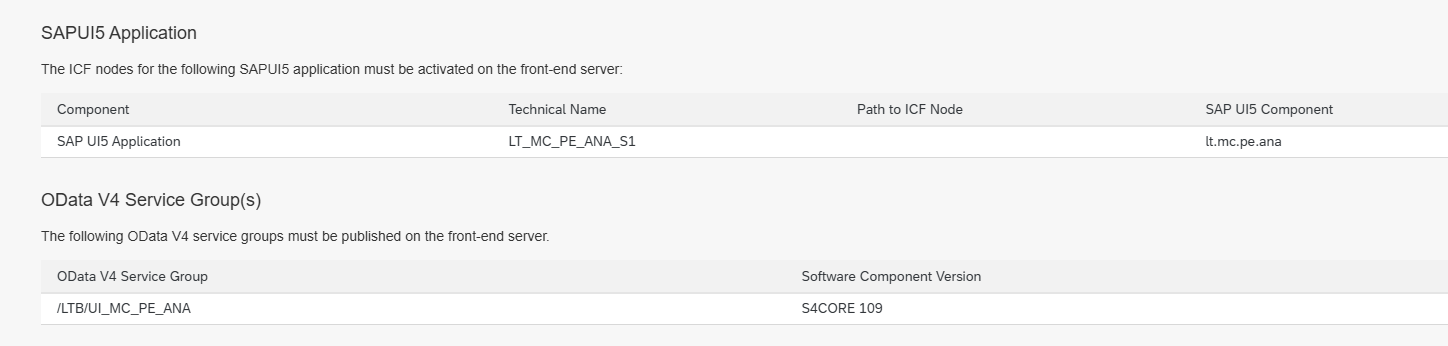
If you check the configuration help in the SAP Fiori Apps Reference Library, you will see that the OData V4 service group “/LTB/UI_MC_PE_ANA” must be activated. This is also reflected in the error area marked above (1).
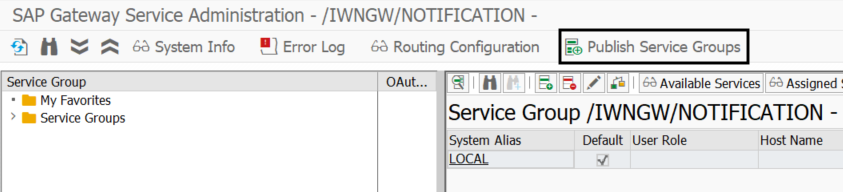
Perform this using transaction /IWFND/V4_ADMIN – SAP Gateway Service Administration and select the “Publish Service Group” option there.
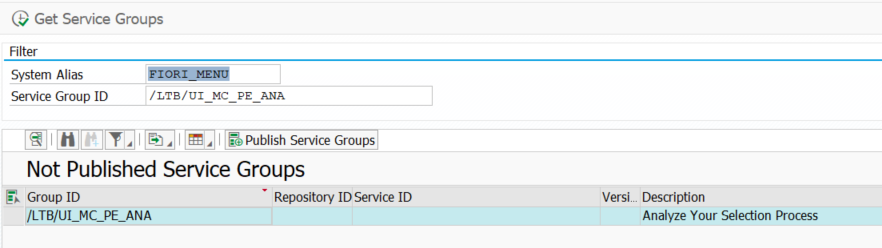
Search for /LTB/UI_MC_PE_ANA and then publish the service group via “Publish Service Groups.” If the process was successful, you will receive a corresponding confirmation message.
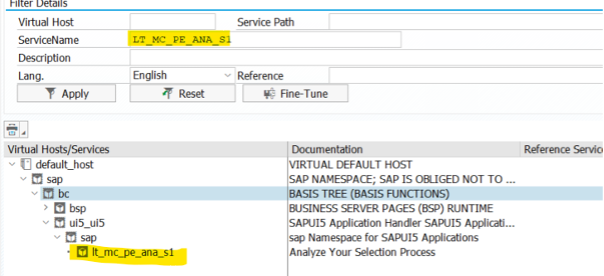
Then check in transaction SICF whether the service “LT_MC_PE_ANA_S1” is activated.
Now let’s address the second error from the error log and activate the “C_DATAMIGRATIONVAL_CDS” service. To do this, open transaction /IWFND/MAINT_SERVICE – Activate and Manage Services, and select “Add Service” from the menu bar.
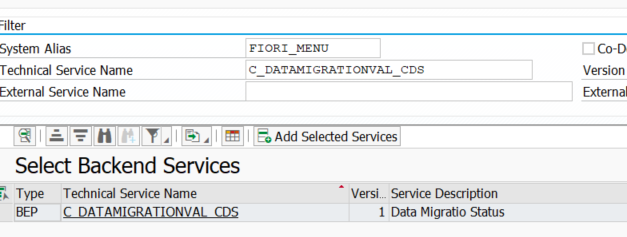
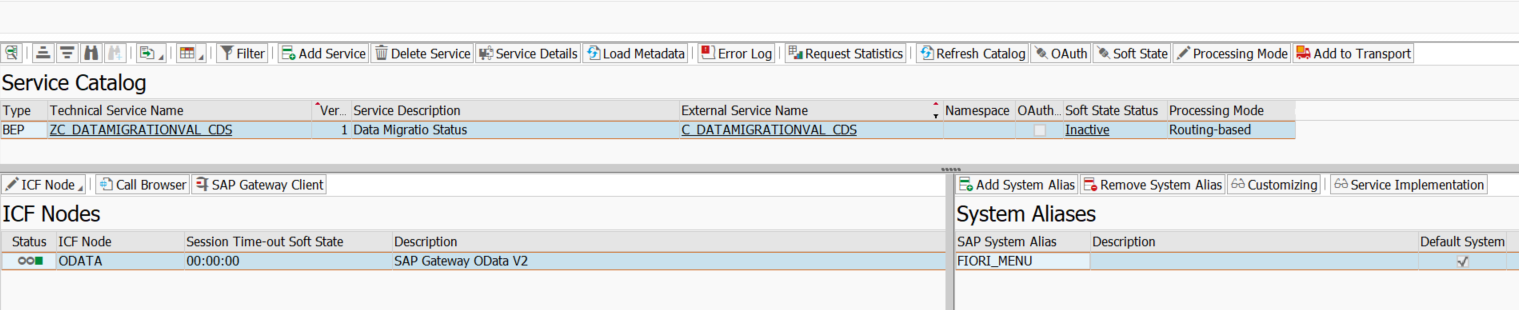
Select the service and activate it by clicking “Add Selected Service.” You should then activate the following services.
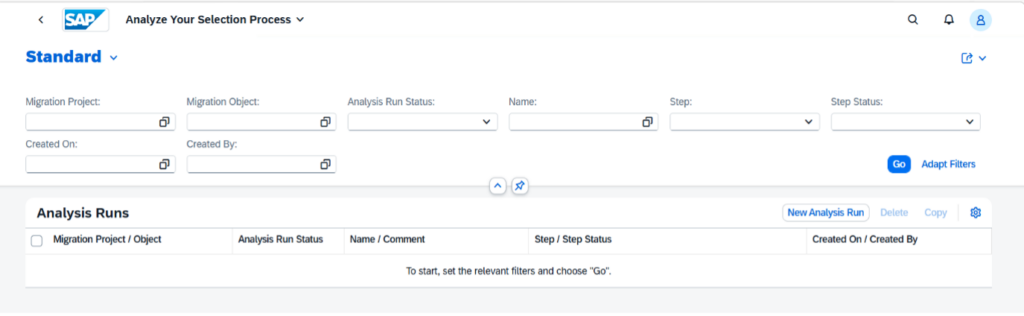
You can then start the app using the “Analyze Your Selection Process” tile.
For more information on service activation and authorization, see the SAP Help page.
Conclusion and outlook
With the right system requirements, a properly configured Launchpad foundation, the appropriate roles, and activated services, you have successfully integrated the SAP Migration Cockpit into your system. The path from theory to a running app is shorter than expected—provided you know which settings to adjust.
Of course, this article only scratches the surface of Launchpad configuration. Depending on the system, release, and project-specific requirements, there are numerous other nuances and optional settings. However, you are now well-equipped for a successful start.
In the next part of the series, we’ll dive deeper into the Migration Cockpit and show you, step by step, how to create your first migration project, select migration objects, and successfully transfer your data.
We at adesso business consulting are happy to assist you with setting up the SAP Migration Cockpit in the Fiori Launchpad. Together, we’ll work with you to find a tailored migration and/or data processing strategy. We look forward to hearing from you!